How to find your MacBook's diagnostic menu
If your MacBook is having major hardware problems, the Apple Diagnostics menu can help make sense of what's wrong.
14 min read

Executive DigestOriginal Reporting by Engadget
This is a curated overview of the story reported by Engadget. Full text remains copyright of the publisher.
Read Full Story on Engadget →How to find your MacBook's diagnostic menu
If your MacBook is having major hardware problems, the Apple Diagnostics menu can help make sense of what's wrong.
A MacBook that keeps shutting down, develops display problems or suddenly stops recognizing its keyboard can leave you guessing whether the problem is hardware or software. Apple Diagnostics can narrow that down by testing hardware inside the Mac. Despite the "diagnostic menu" wording you may see online, it isn't something you'll find buried in System Settings. You access it while your Mac starts up.
Before you get there, you need to know which type of MacBook you have, since the startup process differs between them. Open the Apple menu and select About This Mac. If you see Chip followed by the name of an M-series processor, you have an Apple silicon Mac. An older model may instead show Processor followed by an Intel chip. Apple also maintains a list of Mac models with Apple silicon if you're still unsure.
The experience inside Apple Diagnostics depends on your version of macOS, too. Macs running macOS 26 Tahoe or later can offer individual diagnostics for hardware such as the built-in display, keyboard or trackpad. On earlier versions, the diagnostic test runs automatically.
How to open Apple Diagnostics on a MacBook
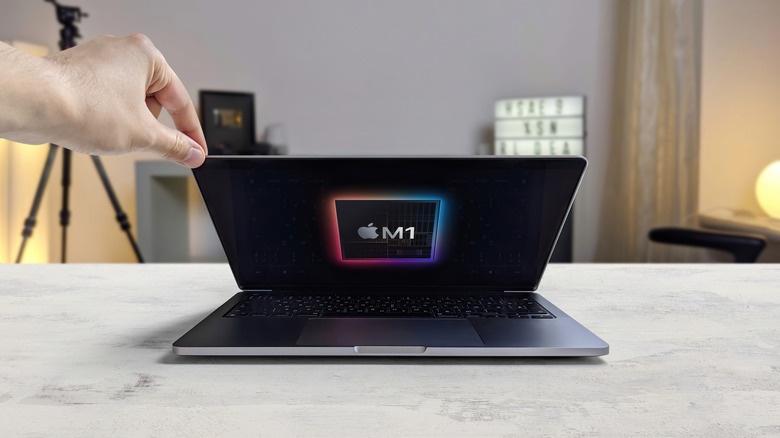
Before running the test, Apple recommends installing available macOS updates if your MacBook is usable enough to do so. Once that's done, shut down the machine and disconnect external devices. Leave only necessary connections such as power and Ethernet, as well as an external keyboard, mouse or display if applicable. Put your MacBook on a hard, flat surface with good ventilation.
On a MacBook with Apple silicon, press and hold the power button (the Touch ID button also serves as the power button on MacBooks equipped with it). Keep holding until the startup options screen appears and you see Options, then release the button. Press and hold Command (⌘) and D until the Mac restarts into Apple Diagnostics.
On an Intel MacBook, turn the computer on and immediately press and hold D. Release the key when you see a progress bar or are asked to select a language. If that shortcut doesn't work, restart and try holding both Option (⌥) and D, which can start Apple Diagnostics over the internet.
Follow the prompts once Diagnostics opens. Your MacBook may ask to connect to Wi-Fi if it's not wired in. On macOS 26 Tahoe or later, you'll also see the available diagnostic choices and can select the test that matches the problem you're investigating. Earlier versions generally begin testing automatically.
Apple Support or a repair technician can also start an online Apple Diagnostics session in some cases. Unless you're running this at their request, choose Run Offline.
What Apple Diagnostics can and can't test

Apple Diagnostics is a hardware troubleshooting tool. It can identify potential faults involving internal components, showing specific codes for areas like memory, batteries, cameras, keyboards, trackpads, storage, displays and wireless hardware.
What it can't do is just as useful to understand. It doesn't test external hardware such as a connected USB accessory, and it isn't designed to find problems caused by macOS, apps or software extensions. If a certain app keeps crashing or an external drive repeatedly disconnects, for example, Apple Diagnostics probably won't have anything useful to report. Apple's Mac troubleshooting documentation makes that distinction explicit.
This also changes how you should interpret a clean test. The reference code ADP000 means Apple Diagnostics found no issues. It doesn't prove nothing is wrong with your MacBook; it means the test didn't identify a problem with the hardware it checked. This leaves software, an external accessory or another cause still on the table.
When Diagnostics returns a component-specific code, you can look it up to see what part of the MacBook it relates to. This will show whether Apple recommends additional troubleshooting or service.
What to do after Apple Diagnostics finishes

If Apple Diagnostics returns one or more reference codes, keep them. Apple's reference code page explains what they mean and, where applicable, what to do next. The codes are also useful if you contact Apple Support or take your MacBook to an Apple Store, Apple Authorized Service Provider or Independent Repair Provider.
If Diagnostics doesn't identify a hardware problem, but your MacBook is still misbehaving, the next step depends on the symptoms. One option is macOS Recovery, sometimes informally described as a Mac's "repair mode." Recovery is different from Apple Diagnostics: it provides tools for repairing the startup disk with Disk Utility, reinstalling macOS, or restoring from a Time Machine backup.
To enter macOS Recovery on an Apple silicon MacBook, shut it down and hold the power button until startup options appear. Select Options, then Continue. On an Intel MacBook, turn it on and immediately hold Command (⌘) and R until you see the Apple logo or a spinning globe. Be aware that Intel Macs can't run macOS 27 Golden Gate, so their time is limited.
That difference can save you from troubleshooting the wrong issue. Apple Diagnostics is the place to start when you suspect an internal hardware failure. If the hardware test comes back clean, software troubleshooting or macOS Recovery may be the more useful next move. For minor issues, simple tips to speed up your Mac might be all you need.
30
Related Articles

TechRadar·15h ago·Technology
Salesforce has built the TSA a new AI agent to make travelling less awful for everyone
Salesforce has revealed Ace, a new AI agent for the TSAAce should take the pressure of answering basic questions off human agentsAce has already resolved 96% of basic inquiries so farSalesforce has built the Transportation Security Administration (TSA) a new AI agent to try and help streamline trave…

Engadget·16h ago·Technology
Considering a Level 2 EV charger? How to know if you need one
Charging your EV from home is cheap and convenient, but knowing which type of charger will get the most out of your electric car can often be confusing.

TechRadar·16h ago·Technology
Nvidia RTX 5090 GPU prices skyrocket to $9,000 — as fresh RTX 6000 rumor suggests a 2027 launch that fills me with dread
Nvidia's RTX 5090 is now over $9,000 in the USA new rumor suggests that RTX 6000 gaming GPUs are coming in 2027, maybe in the first half of the yearIf true, the price tag that's attached to the RTX 6090 will likely be colossal, and lower-tier GPUs could be pricey tooNvidia's RTX 5090 flagship has hi…

9to5Mac·16h ago·Technology
India escalates Apple probe over alleged iOS 18 issues that incurred repair costs
India’s Central Consumer Protection Authority (CCPA) has reportedly escalated its probe into whether Apple should be held responsible for an iOS 18 update that allegedly caused display and microphone issues on some iPhones. Here are the details. more…